





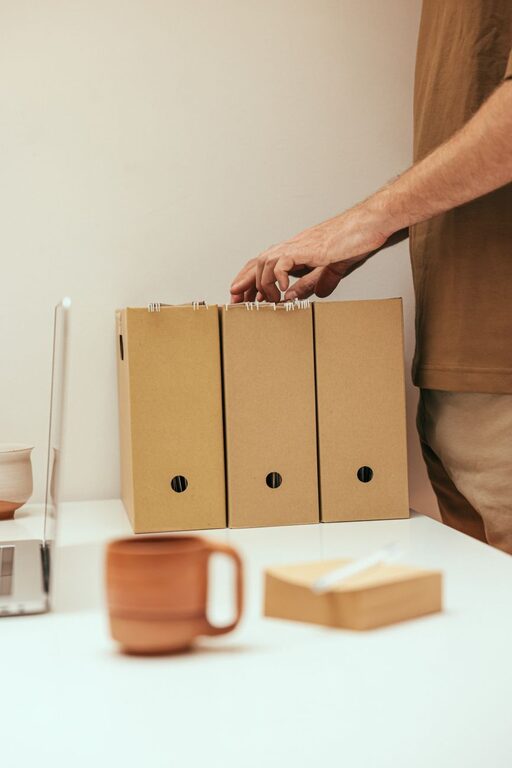
Keeping your computer files organized might seem like a mundane task, but it plays a crucial role in maintaining productivity and reducing stress. Whether you’re managing work documents, personal files, photos, or downloads, a well-organized file system helps you find what you need quickly and keeps your digital workspace clutter-free.
In this post, we’ll share practical tips and techniques for organizing files on your computer, no matter your skill level or the operating system you use.
Why Organize Your Files?
Before diving into tips, it’s important to understand the benefits of organizing your files:
– Saves time: Quickly locate documents without endless searching.
– Reduces stress: A tidy digital environment can improve focus.
– Prevents data loss: Easier backup and recovery when files are orderly.
– Increases productivity: Spend less time managing files and more time working.
Now, let’s explore how to get started.
1. Create a Logical Folder Structure
Start by designing a clear folder hierarchy that mirrors your work and life needs.
Use broad categories
At the highest level, create folders based on major areas such as:
– Work
– Personal
– Finances
– Photos
– Projects
Break down into subfolders
Within each main folder, add subfolders for specifics. For example, under Work, you might have:
– Reports
– Presentations
– Meeting Notes
This structured approach helps you avoid dumping everything into one folder and makes navigation intuitive.
2. Name Files and Folders Clearly
A file or folder name should describe its contents clearly so you can identify it without opening.
Tips for naming
– Use descriptive words (e.g., “2024_Tax_Return” instead of “Document1”)
– Include dates in a consistent format like YYYY-MM-DD to keep files in order.
– Avoid vague names like “Untitled” or “New Folder.”
– Use underscores or dashes instead of spaces for better compatibility across systems.
3. Regularly Sort and Delete Unnecessary Files
Over time, computers accumulate outdated or duplicate files. Make it a habit to:
– Delete files you no longer need.
– Remove duplicates by using dedicated software or manually comparing.
– Archive old files you want to keep but don’t need daily access to, possibly moving them to an external drive or cloud storage.
A quarterly clean-up routine can prevent your files from becoming overwhelming.
4. Use Tags and Metadata (If Available)
Some operating systems support file tagging or adding metadata, which can help with searching.
– Tag related files across different folders with keywords.
– Use file properties to add comments or descriptions.
This layered approach to organization makes retrieval easier, especially for files that belong to multiple categories.
5. Leverage Search and Sorting Features
Modern computers have powerful search tools. Use these effectively by:
– Combining descriptive file names with tags.
– Using filters like file type, date, or size to narrow down results.
– Regularly indexing your files to keep searches fast.
However, don’t rely solely on search—organization complements effective searching.
6. Backup Your Organized Files
Once your files are organized, ensure they are safe by backing up.
– Use external hard drives, USB drives, or cloud services.
– Set up automatic backups if possible.
– Test restoring files occasionally to verify backup integrity.
A good backup plan protects your organized files from hardware failure or accidental deletion.
7. Manage Downloads and Desktop
Two common problem areas are the Downloads folder and the Desktop.
– Regularly move files from Downloads into appropriate folders.
– Don’t keep too many files on the Desktop; it should stay clean for easy access to important items.
Set a reminder to sort these clutter zones weekly or monthly.
8. Use File Management Software
If your needs are more advanced, consider file management programs that help:
– Organize large numbers of files.
– Detect and remove duplicates.
– Synchronize files between devices.
Popular options include free tools like FreeCommander or paid software like Directory Opus.
9. Consistency is Key
The best system is one you can maintain. Set naming conventions and folder structures that make sense to you and stick to them.
– Document your system if necessary.
– Make it a habit to save files to the right location immediately.
This consistency will save time and frustration in the long run.
10. Customize Based on Your Workflow
Finally, tailor your file organization to fit your personal or work style.
– For creative professionals, organizing by project and version might be useful.
– For students, organizing by classes and semesters works well.
– For families, organizing by event or year can keep memories accessible.
Adjust and refine your system as your needs evolve.
—
Organizing files on your computer doesn’t have to be complicated. With a few simple habits and tools, you can create a digital filing system that saves time, reduces stress, and keeps your important documents safe. Start with small changes today, and enjoy a more streamlined digital life!




More Stories
Simple Ways to Organize Your Entryway for a Clutter-Free Home
How to Store Seasonal Clothes Efficiently: Tips for an Organized Closet
How to Make Your Kitchen Counters Clutter-Free and Functional